Reading the rail
The rail lists your fleet, one row per agent, with Concierge at the top. Every row is one line. Select a row to put that agent in the center column; the selected row is tinted with your accent color.
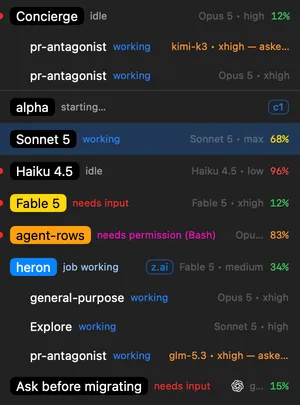
What a row shows
Section titled “What a row shows”From left to right:
- The name, on a pill in the agent’s own color. It is the session’s own name, the one you gave it or the one its harness made up, or else the title the harness gave it, and failing both, its role or its model.
- The status, in words and in color. The next section lists them.
- A profile chip, when the session was launched under one of your profiles. Sessions on your default account carry no chip.
- The OpenAI mark, when the session is Codex CLI. Claude Code sessions carry no mark.
- The model and thinking level, on the right.
- The context badge, always rightmost: how much of the session’s context window is used.
When the rail is narrow, the model and thinking level shorten first, then the status. The name, the profile chip, the OpenAI mark and the context badge always stay whole.
Subagents sit under the agent that started them, indented, in the same one-line shape: their role, their status, and their model and thinking level. If a subagent is running on a different model from the one it asked for, its model and thinking level turn orange and name the one it asked for, as in glm-5.3 • xhigh — asked Opus, and the warnings strip at the foot of the rail says so by name.
Status
Section titled “Status”| Status | Color | What it means |
|---|---|---|
| working | bright blue | The agent is in the middle of a turn. |
| job working | light blue | A background job is doing work. |
| needs input | red | The agent has asked you something and is waiting for an answer. |
| needs permission | magenta | The agent wants to run a tool and is waiting for your approval. |
| failed | orange | The session has failed. |
| idle, done, archived | grey | The agent is resting. |
A row that needs permission names the tool it is asking about, as in needs permission (Bash). The status always follows what the harness reports: a background job that is blocked on a question reads needs input in red even while its turn is idle. Nightdesk never changes a status on a timer of its own.
The context badge
Section titled “The context badge”The badge’s color says how full the session’s context window is: green under 50%, yellow from 50% to 74%, orange from 75% to 89%, and red at 90% and over.
The unseen dot
Section titled “The unseen dot”A small dot on the window’s left edge, beside a row, marks an agent that has done something since you last looked at it. Looking at it means having its row selected while Nightdesk is the app in front. The dots start fresh each time Nightdesk opens.
Live agents come first. Among them, the agent that most recently did something Nightdesk watched happen is on top, so an agent climbs the rail the moment it finishes something.
Starting and finished rows
Section titled “Starting and finished rows”A session you have just launched gets a row reading starting…, named for its checkout and pinned above the fleet until the session is running. Clicking it takes you to the new session’s pane.
Right-click a finished agent’s row, or the row of a background job blocked on a question while its
turn is idle, and choose Dismiss to take it off the rail. View ▸ Clear Finished Agents
clears every finished agent at once. A finished agent also leaves the rail on its own 24 hours
after its last activity, unless it is a Claude Code session you named yourself, with --name
when you launched it or with /rename later. A dismissed session that comes back to life
reappears on its own.
- ⌘[ and ⌘] step up and down the rail, Concierge first.
- ⌘0 selects Concierge.
The agent a checkout’s work goes through by default is its coordinator, and the foot of the rail carries the accounts strip.