Launching a session
The New Session sheet starts a session in the checkout you choose, as the account you choose. Open it with the + button at the top of the rail, from File ▸ New Session…, or with ⌘N.
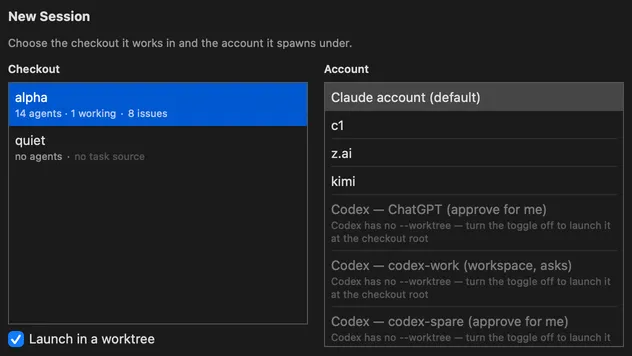
The sheet
Section titled “The sheet”The sheet is one screen: the Checkout list on the left, the Account list on the right, a checkbox under the Checkout list, and the buttons at the bottom. Choose a checkout and press Launch; the default account is already chosen. Drag an edge of the sheet to make it larger, and it opens at that size next time.
Checkout
Section titled “Checkout”The Checkout list shows every checkout Nightdesk can launch in. Each row says how many agents
are already there and how many of them are working, and where the checkout’s tasks come from — a
number of issues, a todo.md file, or no task source. Hover over a row to see its path.
A checkout that already has a new session’s pane open is listed but can’t be chosen, and its row says why. Its Show its pane link takes you to that pane.
Launch in a worktree starts the session in a new worktree of the checkout instead of in the checkout itself. The checkbox starts cleared. Selecting or clearing it changes which rows can be chosen, because a checkout can be busy in one and free in the other.
Account
Section titled “Account”The Account list decides who the session runs as, and with it whether the session is Claude Code or Codex CLI. The default Claude account comes first and is chosen for you. Below it are your profiles, then Codex — ChatGPT and each of your Codex seats, when Codex CLI is installed on your Mac.
Every Codex row ends with the approval and sandbox policy the session starts with — approve for me, for example, or workspace, asks — because a Codex session stopped at an approval prompt you cannot see would wait there silently. Codex has no worktree option, so while Launch in a worktree is selected, the Codex rows are dimmed with the reason.
If a Codex row is chosen when you select the checkbox, the choice moves back to the default account.
If your profiles file has a mistake in it, the error appears as a warning row under this list, and the default account still works.
Launch
Section titled “Launch”Press Launch. The sheet closes, and the center column shows the new session’s pane while its terminal starts. It stays there until you choose something else, even as the rest of the fleet changes around it. If the session exits straight away, its pane stays up and shows its exit code. If the launch is refused, the sheet stays open and says why.
Other ways to launch
Section titled “Other ways to launch”- The quickswitcher. Press ⌘K and type part of a checkout’s name. It offers a new session in that checkout, the same in a worktree, and one for each of your profiles.
- From a task. The Tasks tab can hand a task to a new session. The text you read and edit before sending becomes the session’s first prompt.
Profiles
Section titled “Profiles”A profile launches Claude Code as a different account, with its own settings folder and its own
sign-in. Profiles are listed in one file, spawn-profiles.json, in Nightdesk’s Application
Support folder, and you edit it by hand; the app has no editor for them. The file is a JSON
array of entries. A profile’s entry can set four fields: name, the name the Account list shows;
configDirectory, the settings folder it uses; environment, the environment variables it
sets; and keychainService, the Keychain item that holds its sign-in. Your Codex seats are
entries in the same file, and each seat’s entry sets the approval and sandbox policy its row
shows.
When you launch with a profile, Nightdesk prepares that account there and then. If anything fails — the folder, the sign-in — nothing starts, and the reason appears in red by the launch buttons. Nightdesk never falls back to your default account instead, because a session on the wrong account would look exactly like one on the right account.
A session keeps its profile. Attaching to it, restarting it, or resuming it uses the account it was launched with.
Attach and restart covers both verbs, and How Nightdesk pairs a pane with a session explains what happens between pressing Launch and the agent’s row appearing on the rail.