The window at a glance
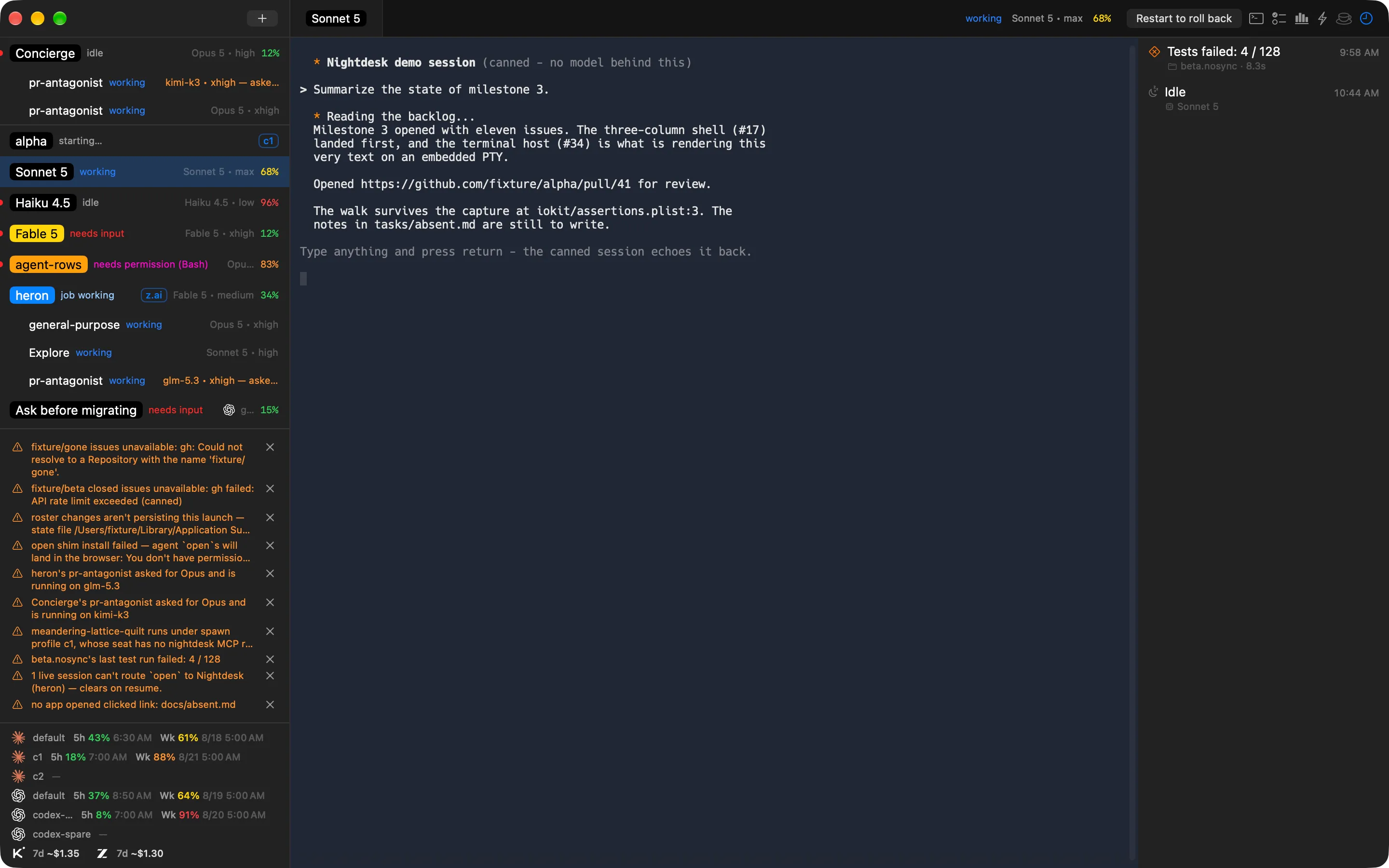
Nightdesk is one window: three columns under a bar. The agent rail on the left lists your fleet. The center column shows the agent you have selected. The project drawer on the right is a feed of what Nightdesk has watched happen.
The agent rail
Section titled “The agent rail”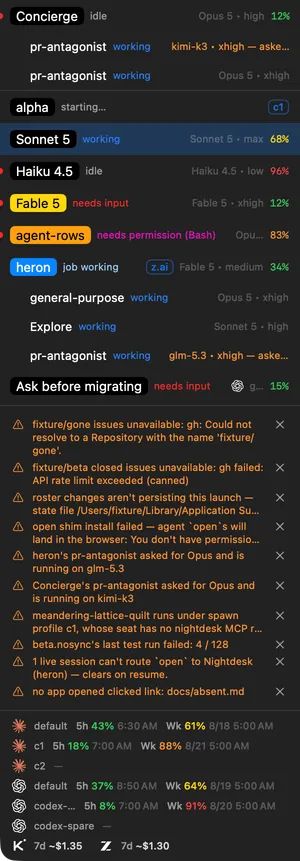
The rail is always open. Drag its edge to make it wider or narrower. Concierge sits at the top; every other agent follows, one line each, with any subagents it has started indented beneath it. The foot of the rail carries the warnings strip, when something needs your attention, and the accounts strip, which shows how much of each account’s usage window is gone and when it resets.
Reading the rail explains what a row tells you. Concierge, Coordinators and the accounts strip each have a page of their own.
The center column
Section titled “The center column”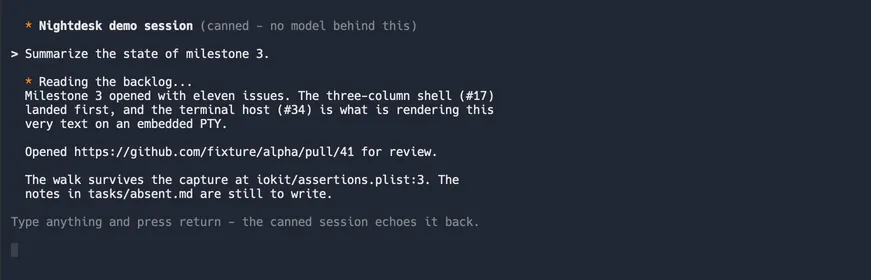
The center column shows whichever agent you have selected in the rail. An interactive session is a live terminal you can type into. A background job shows its transcript, which you can attach to when you want to talk to it.
Other things open here as tabs beside the session. The session tab is always first, named after the agent. Then come any links you have opened, such as a pull request or a preview an agent delivered; then terminals; then the Tasks and Usage tabs.
The project drawer
Section titled “The project drawer”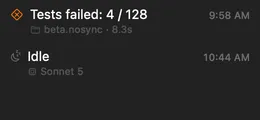
The drawer is a feed of what Nightdesk has watched happen: issues starting and closing, pull requests opening, reviews landing with their verdict, test runs passing and failing, agents changing state. It follows your selection: with an agent selected, it shows that agent’s events and any from its checkout that belong to no one agent, such as a test run; with Concierge selected, it shows the whole fleet’s. The newest row is at the bottom. A row with a page, such as a pull request or an issue, opens it as a tab when you click it.
The activity feed explains what the drawer narrates and which rows open a page.
The bar across the top
Section titled “The bar across the top”
The bar has two sections. Over the rail sit the window controls and the + button, which opens the New Session sheet. Over the rest of the window, from the left: the center column’s tabs; then the selected agent’s vitals — its status, task, branch, speed, model and thinking level, and how much of its context is used; then the controls. When the bar runs out of room, the branch shortens first, then the model and thinking level.
| Control | What it does |
|---|---|
| Restart | Restarts the selected session, and always asks first. It reads Restart to update when the installed CLI is newer than the one the session is running, and Restart to roll back when it is older. |
| Terminal | Opens a new tab running a login shell in the selected checkout, or in your home folder when Concierge is selected. Closing a terminal tab ends its shell and its scrollback. |
| Tasks | Opens the selected checkout’s Tasks tab, or brings it forward. It is unavailable when Concierge is selected. |
| Usage | Opens the Usage tab. With Concierge selected, it covers the whole fleet. |
| Stall nudger | Off until you arm it. Armed, when Claude Code reports that one of its sessions has stalled on an API error, it sends that session the word Resume. and records the nudge in the drawer. It sends nothing else, and nothing to a Codex CLI session. Arming also adds Nightdesk to your login items. |
| Keep awake | Click it to hold your Mac awake; it is lit while Nightdesk’s hold is on, and clicking again releases it. Dimmed means another process is keeping the display awake; clicking then starts Nightdesk’s own hold beside it. Nightdesk only ever releases its own hold. |
| Activity | Shows or hides the project drawer. |
The stall nudger and Keep awake each have a page of their own.
Keys for getting around
Section titled “Keys for getting around”- ⌘N opens the New Session sheet.
- ⌘K opens the quickswitcher: type part of an agent’s, checkout’s or task’s name and press Return to go there.
- ⌘0 selects Concierge. ⌥⌘0 shows or hides the project drawer.
- ⌘[ and ⌘] step up and down the rail.
- ⇧⌘[ and ⇧⌘] step through the selected agent’s tabs.
Keyboard shortcuts lists every key the window answers to.